

Switching from Truemed to Burst on Shopify
Switching from Truemed to Burst on Shopify
New. A step-by-step checklist for Shopify brands moving from Truemed.
This guide is for Shopify brands that use Truemed and are moving to Burst. It walks you through removing Truemed from your store and your marketing, closing out your Truemed account cleanly, and getting your store ready to install Burst.
Work through the steps in order. Steps 1 to 3 should be done close together, so customers never see a Truemed payment option or link that no longer works.
At a glance
Before you start
- Read your Truemed agreement. Check the notice period, how to give notice, and any fees still owed. Truemed’s self-serve terms have no long-term contract, but enterprise agreements can differ.
- Export your Truemed data. In the Truemed dashboard at app.truemed.com, download your Truemed payments and orders, and your list of products and their eligibility. Keep them for your records and for any refunds later.
- Settle open Truemed orders. Orders paid with Truemed stay in Payment pending until the customer’s letter is issued, then move to Authorized. If you capture payments manually, capture every authorized Truemed order before you switch. Authorizations expire after the capture window and can’t be recovered.
- Make sure you have Shopify admin access. You need the store owner or a staff account with permission to manage apps, payments, themes, and checkout.
Step 1: Tell Truemed you’re leaving
Email your Truemed Customer Success contact, or merchants@truemed.com if you don’t have one. Ask them to:
- Accept your notice to end the agreement, and confirm the end date.
- Remove your brand from the Truemed marketplace, partner directory, and brand lists, and stop referring to you as a Truemed partner in their marketing, search ads, and customer support.
- Turn off product syncing and any store features they manage for you (for example, showing the payment option only on eligible carts).
- Confirm the date of your final payout and send any final invoice.
- Confirm how refunds on past Truemed orders will work after the end date.
- Confirm how they’ll answer your customers who have open Truemed orders or questions about letters they already got from Truemed.
You can copy this email:
Subject: Ending our Truemed partnership — [Brand name]
Hi [name],
We’re writing to give notice that [Brand name] ([store URL]) is ending our Truemed partnership, effective [date].
Before then, could you please:
- Confirm the end date and any notice period under our agreement
- Remove [Brand name] from the Truemed marketplace, partner directory and brand lists, and stop referring to us as a Truemed partner
- Turn off product syncing and any store features you manage for us
- Confirm our final payout date and send any final invoice
- Confirm how refunds on past Truemed orders will be handled after the end date
We’ll deactivate the Truemed payment option at checkout on [date].
Thanks, [Name]
Step 2: Deactivate the Truemed payment option
- In your Shopify admin, go to Settings → Payments.
- Under Additional payment methods, click Truemed.
- Click Deactivate. Truemed no longer appears at checkout.
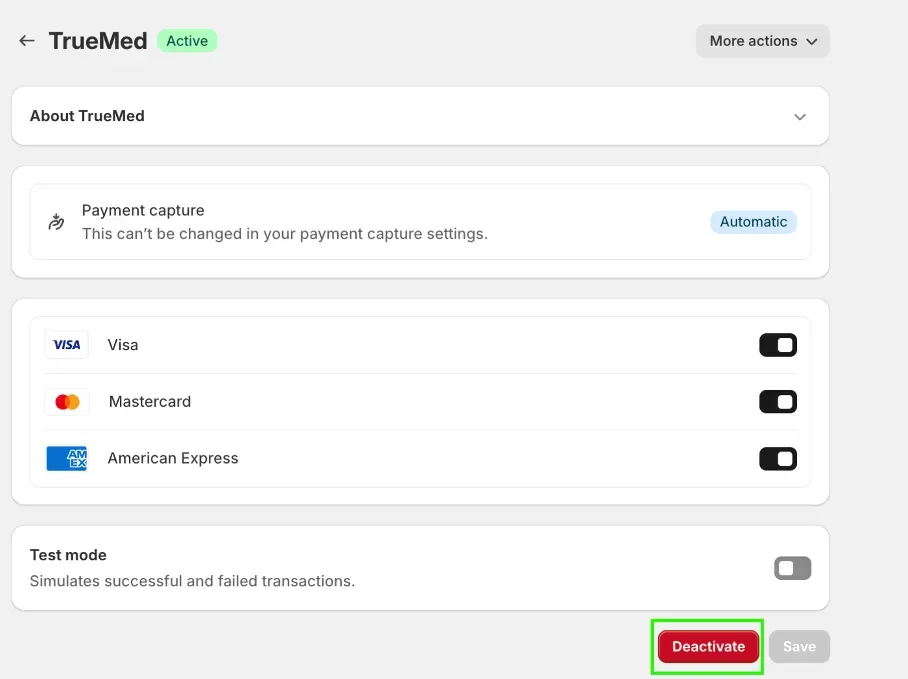
Deactivate, don’t uninstall. Truemed warns that uninstalling the Truemed Payments App can stop you from refunding orders customers paid for with Truemed. Leave it installed but deactivated until your return and refund window for those orders has passed, then uninstall it from the same page.
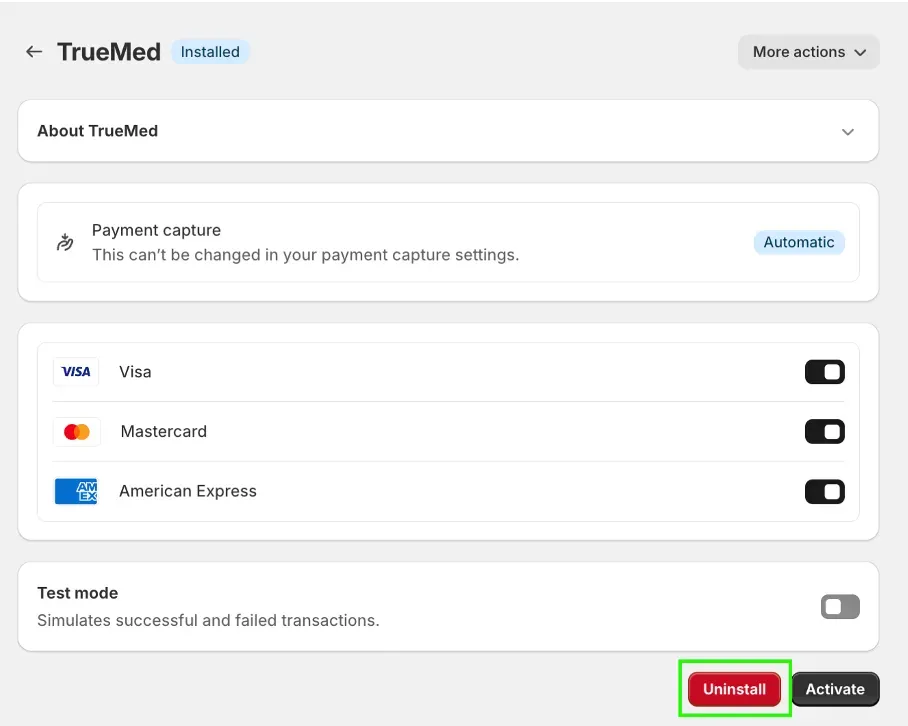
If you capture payments manually and built a Shopify Flow to capture Truemed orders, turn that flow off once your last Truemed order is captured.
Step 3: Remove Truemed from checkout, thank you and order status pages
These blocks come from the Truemed Extensions App, which is separate from the payment app.
- Go to Settings → Checkout and click Customize on your published checkout.
- On the Checkout page, remove every block under Truemed Checkout Widgets: Checkout Banner, Payment Banner, Product Badge, Subtle CTA, and Estimated Savings. Check both the main section and the order summary.
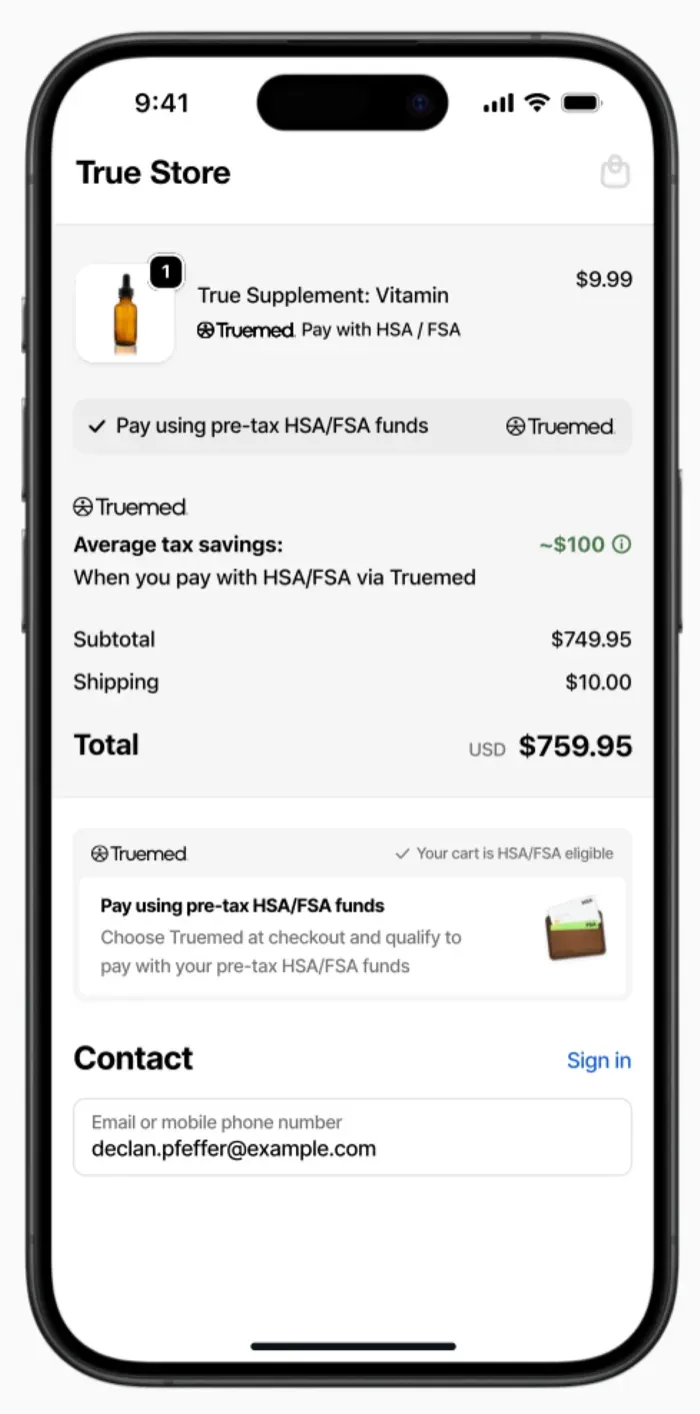
- Switch the page menu at the top to Thank you and remove the Thank You block under Truemed Reimbursement Links.
- Switch to Order status and remove the Order Status block.
- Click Save.
- Repeat for any draft checkout profiles you might publish later.
- Once nothing Truemed is left in checkout, go to Apps, open the Truemed Extensions App, and uninstall it. Rebuild your HSA/FSA collection first if it uses Truemed’s eligibility field (see Step 7).
Also check for older setups:
- Additional scripts. Under Settings → Checkout, look for an Additional scripts or Order status page box and delete any code with
truemed-reimburseortruemedin it. - Checkout Blocks. If you used the Checkout Blocks app for a Truemed banner, for example on subscription products, delete or turn off that block.
Step 4: Remove the product page widget
- Go to Online Store → Themes → Customize.
- Open your product page template and delete the Custom Liquid block with the Truemed widget code (it includes
truemed-instructionsandstatic.truemed.com). On your store, the widget looks like this:
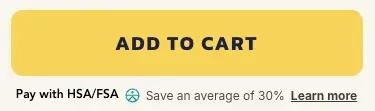
- Check every product template you use, not just the default.
- Delete any CSS added to style the widget (selectors that start with
.truemed-), usually under Theme settings → Custom CSS. - Click Save.
To catch anything added directly to your theme code, go to Online Store → Themes → … → Edit code and search for truemed. Do the same for any unpublished theme you plan to use later.
If you tagged products truemed-eligible or truemed-ineligible to control where the widget showed, remove those tags with Products → bulk edit, or leave them if nothing else uses them.
Step 5: Remove Truemed badges and site-wide messaging
Search your storefront for “Truemed” and update each place it appears:
- “HSA/FSA eligible” badges on product cards, collection pages, and product pages, including image badges or a badge app
- Homepage or announcement banner (for example, “[Brand] now accepts HSA/FSA via Truemed”)
- The Truemed disclaimer, often above the footer, and any link to Truemed’s disclosures page
- Truemed logos and “Pay with HSA/FSA” or “Truemed” mentions in menus, footers, and pop-ups
- FAQ answers that explain paying with Truemed
Keep any HSA/FSA link in your main menu or footer. Point it at your updated HSA/FSA page from Step 6.
Don’t leave messaging that says customers can pay with their HSA/FSA card at checkout through Truemed. Once Truemed is deactivated, that option is gone.
Step 6: Update your HSA/FSA page so it references Burst
Keep the same page and URL (for example, /pages/hsa-fsa), so existing links, emails, and search rankings still work. Rewrite the content:
- Replace every mention of Truemed, the Truemed logo, and the Truemed disclaimer with Burst.
- Change “how it works.” With Truemed, customers selected Truemed at checkout. With Burst, checkout doesn’t change. Customers pay however they like, and Burst follows up afterward.
- Update FAQs about who issues the letter and how customers get reimbursed.
Suggested copy:
Use your HSA/FSA on [Brand]
Some of our products may qualify for HSA/FSA reimbursement with a Letter of Medical Necessity. We’ve partnered with Burst to make that easy.
- Buy as usual. Check out with any payment method.
- Get your letter. After your order, Burst emails you a short health questionnaire. A licensed clinician reviews it and, if appropriate, issues your Letter of Medical Necessity.
- Get reimbursed. Submit your letter and receipt to your HSA/FSA, or let Burst file the claim for you.
If you add a landing page banner with Burst, place it on this page.
Step 7: Rebuild your HSA/FSA eligible collection
If your HSA/FSA collection is set to fill itself from Truemed’s HSA/FSA Eligibility field, it empties once the Truemed Extensions App is uninstalled.
- Before uninstalling, open Products → Collections → HSA/FSA Eligible and note which products are in it.
- After you install Burst and your catalog has been checked, contact Burst support and we’ll help you rebuild the collection on Burst’s eligibility.
- Update any filters or menus that used the Truemed field or the
truemed-eligibletag.
Step 8: Update emails, ads and other marketing
- Order confirmation email. Go to Settings → Notifications → Order confirmation and delete the Truemed qualification link (“This order might be eligible for HSA/FSA reimbursement. Qualify here”). Burst sends its own email after eligible purchases.
- Email and SMS flows. Check welcome, abandoned cart, browse abandonment, post-purchase, win-back, and subscription renewal flows, and email headers and footers, for Truemed mentions or links.
- Paid ads. Update ad copy, sitelinks, and callouts that mention Truemed.
- Social and press. Update bios, pinned posts, and any “now accepting HSA/FSA via Truemed” announcements.
Step 9: Handle existing Truemed customers
- Refunds on Truemed orders. Truemed sends refunds on these orders back to the customer’s original HSA/FSA card. Keep the Truemed Payments App installed but deactivated until those refunds are done (see Step 2).
- Letters customers already have. Letters issued through Truemed came from Truemed’s clinicians. Customers with questions about those letters or Truemed orders should contact support@truemed.com.
- Tell your support team. Let them know Truemed is no longer offered and where to send questions about old orders.
Step 10: Close out payouts and billing
- Keep the bank or payout account Truemed pays you into connected until your final Truemed payout arrives and your Truemed refunds are finished.
- Once Truemed confirms everything is settled, ask them to remove any payment method they have on file for you.
Final check
- Start a test checkout: Truemed isn’t a payment option and no Truemed blocks appear
- Place a test order: no Truemed link on the thank you page, the order status page, or the confirmation email
- Open a few product pages: no Truemed widget or badge
- Search your theme code and storefront for “truemed”: nothing left
- Your HSA/FSA page, FAQs and banner reference Burst
- Truemed has confirmed your end date, removed you from their partner listings, and told you your final payout date
Next: install Burst
Your store is ready for Burst. Follow Install and set up the Burst Shopify app to install the app and add Burst’s badges where you removed Truemed’s.
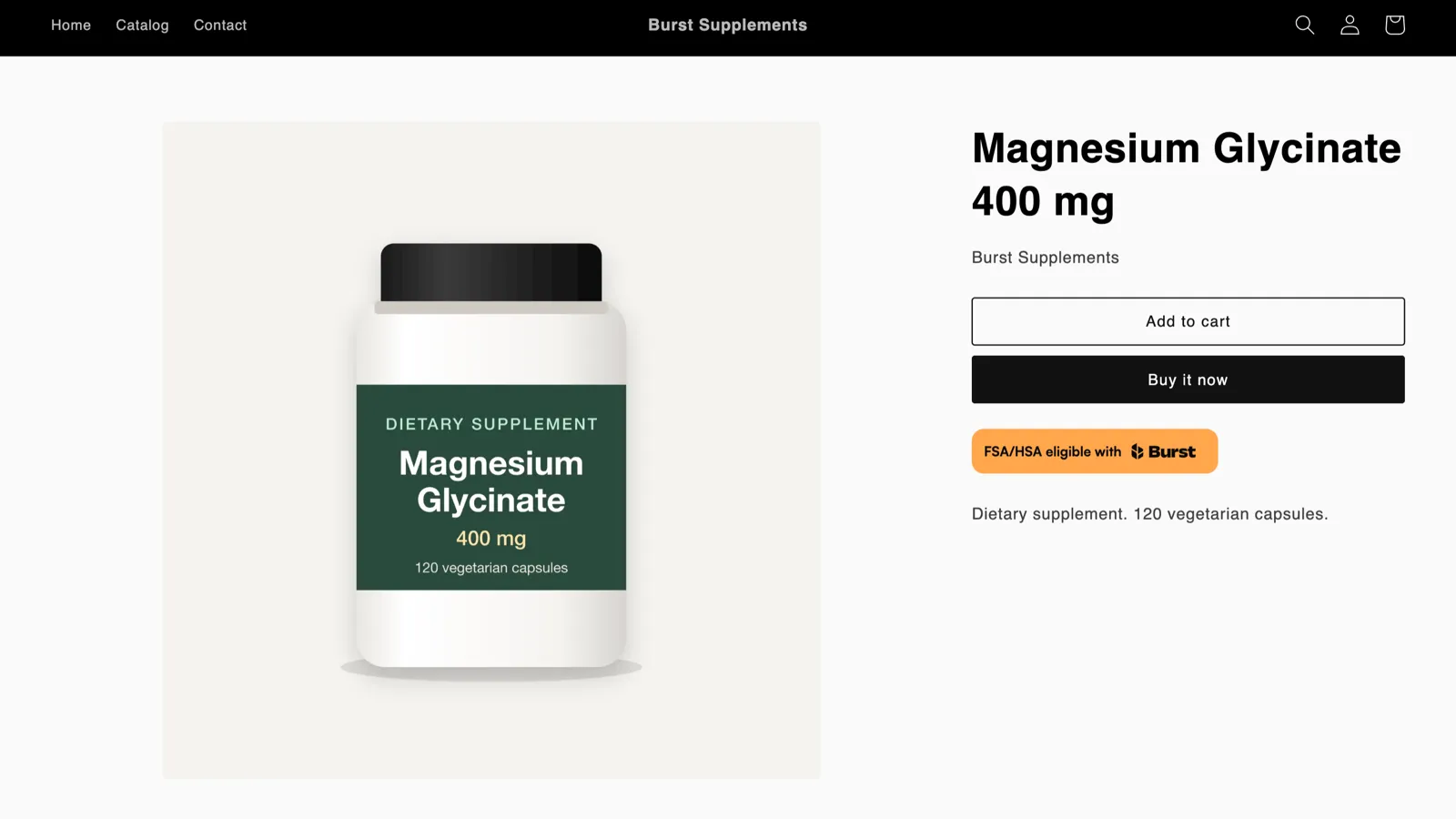
Burst checks your catalog for you, so you don’t need to upload a product file. Orders reimbursed through Burst are tagged Burst in your Shopify admin.
Questions about switching? Email support@getburst.com.