

Install and set up the Burst Shopify app
Install and set up the Burst Shopify app
Have a headless storefront, or a Shopify website where customers buy or book through another app? Use Shopify code snippets from Burst on my website instead of installing the app.
New. The Burst app is now on the Shopify App Store.
The Burst app adds FSA/HSA eligibility to your Shopify store without changing your checkout. Customers pay however they like. Burst shows them which products may qualify, then follows up after the purchase so they can get reimbursed.
Setup takes a few minutes. Burst checks your catalog for you, so most of the work is turning on the badges you want shoppers to see.
What you get
Nothing appears on your store until you add it. Shopify needs you to add each app block yourself, so work through the steps below.
Install Burst
Open Burst FSA/HSA on the Shopify App Store and click Install. Review the access Burst needs, then confirm the install.
When it’s done, open Burst from Apps in your Shopify admin. The home page lists your setup steps.
Add your brand settings
On the Burst home page, fill in Brand Settings:
- Shop Name: the name customers know you by
- Store URL: your public storefront address
- Logo URL: a link to your logo image
Leave Enable post-purchase emails on so customers get Burst’s email after an eligible purchase. Save your changes.
Let Burst check your catalog
You don’t need to tag products yourself. Burst checks every product in your catalog, sorts them into product groups, and sets each product’s FSA/HSA eligibility. New products are checked daily.
You can see the results in Burst under FSA/HSA settings. Each product shows one of three results:
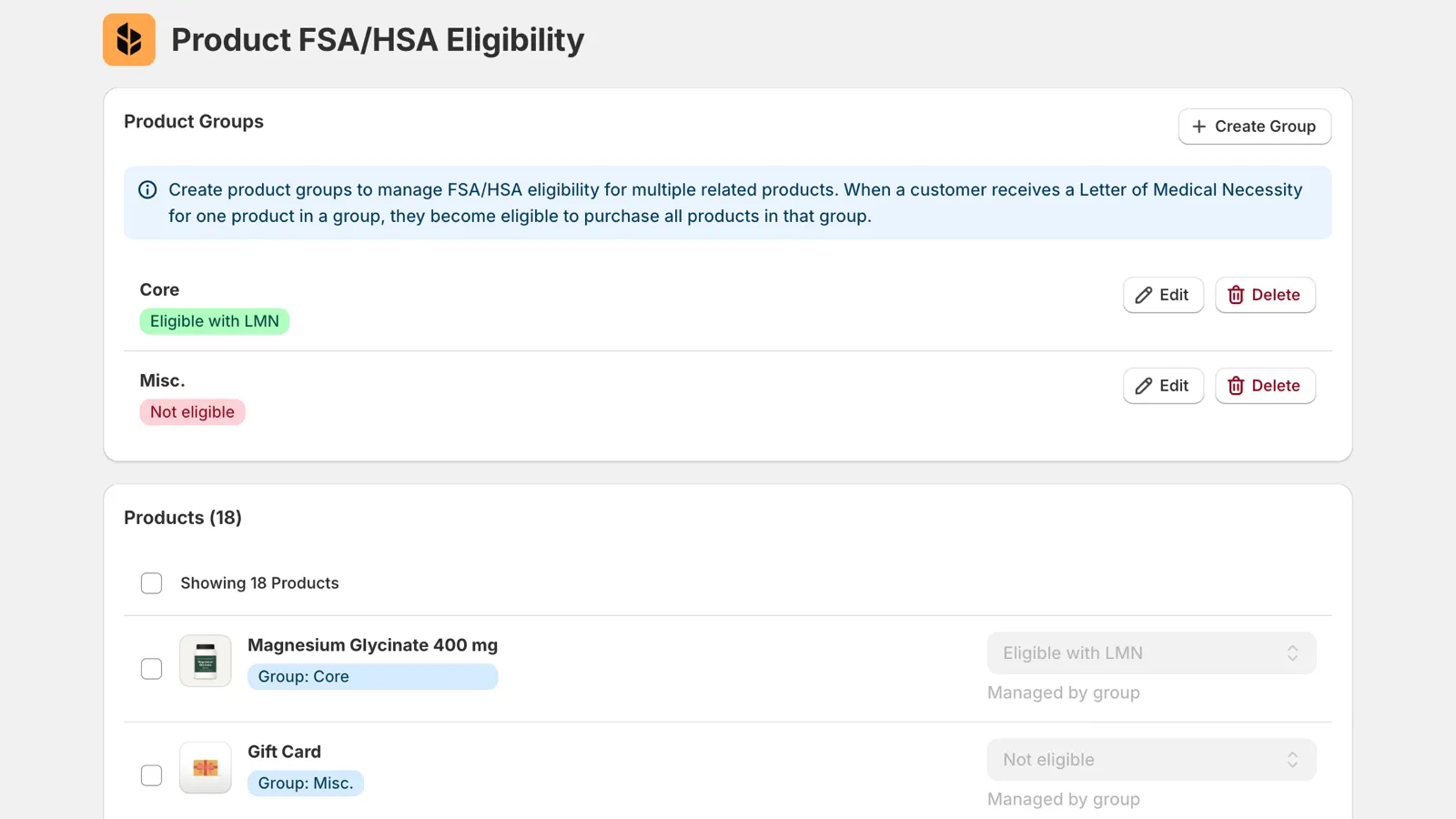
If a product looks wrong, email support@getburst.com with the product name and we’ll review it. See Product eligibility on Shopify for more.
Add the product page badge
- In your Shopify admin, go to Online Store → Themes → Customize.
- Open a product page.
- Click Add block, choose Apps, and pick Burst PDP Badge. Place it inside Product information, near the price.
- Choose a Badge type (Button, Badge or Icon) and the colors that suit your theme.
- Click Save.
Adding it to your product template puts the badge on every product page at once. It only appears on products Burst marked eligible.
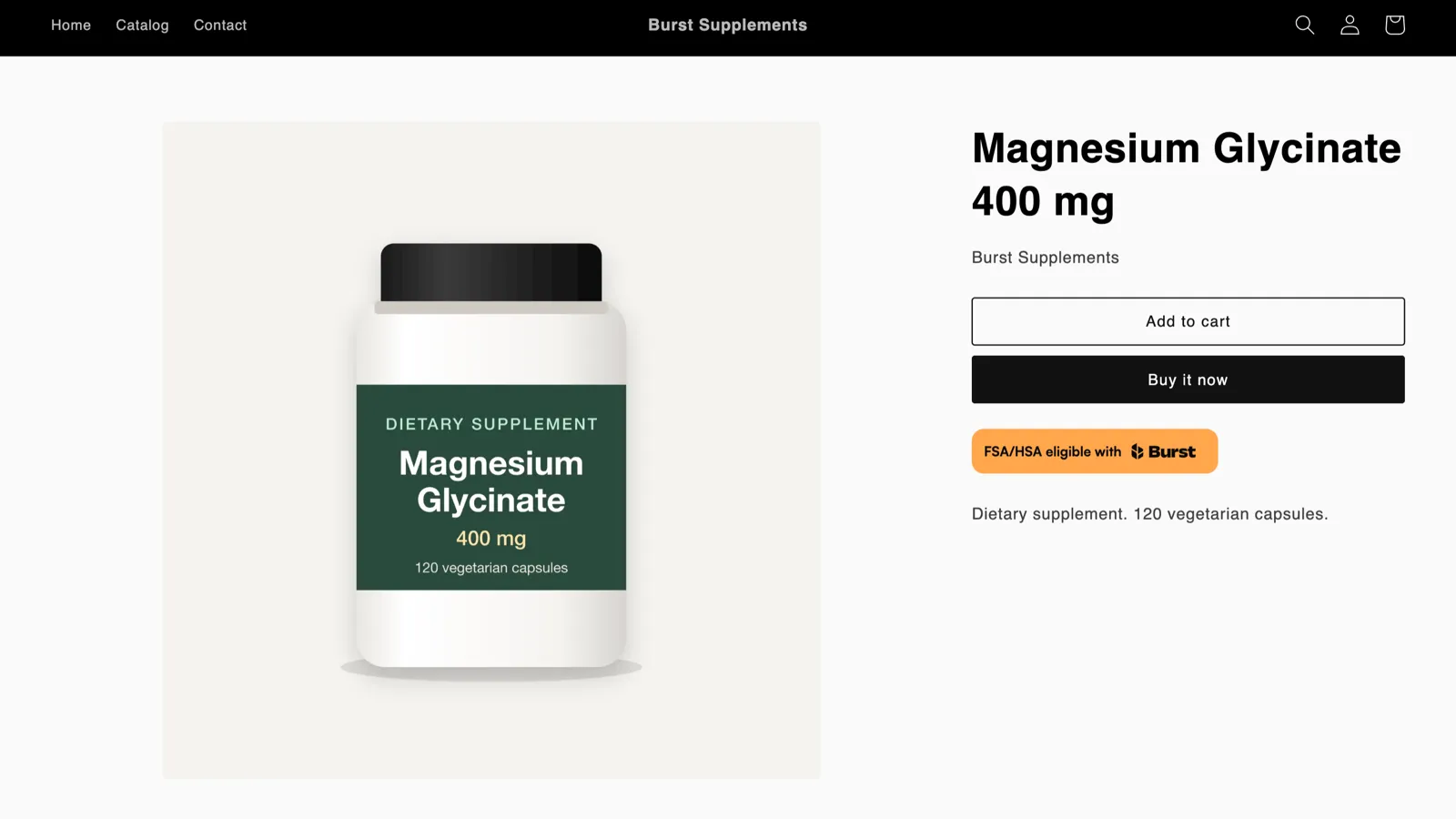
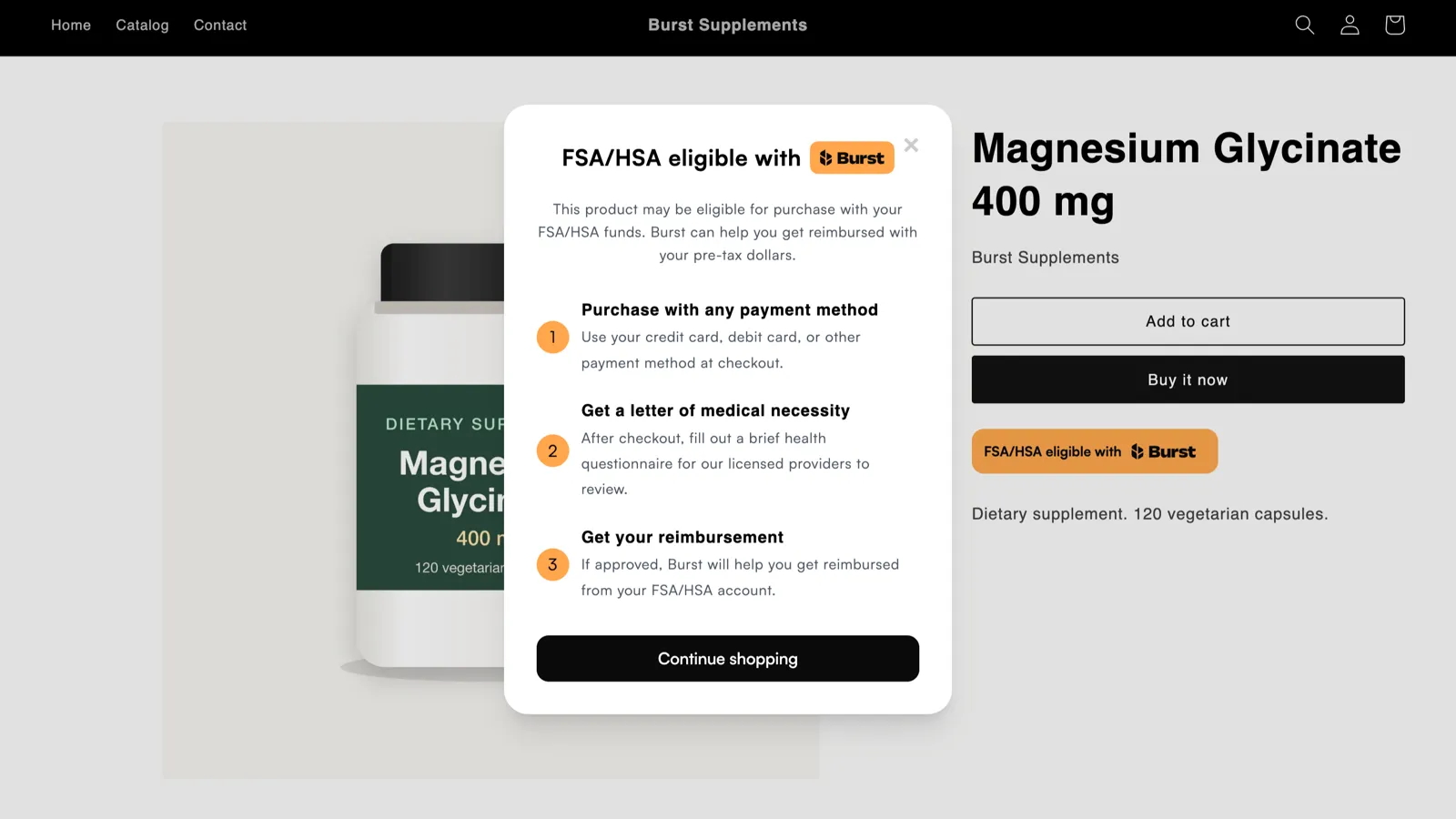
When a shopper clicks the badge, a popup explains how to get reimbursed in three steps.
Add the landing page banner (optional)
- In the theme editor, open the page where you want the banner, such as your homepage or your FSA/HSA page.
- Click Add section, choose Apps, and pick Burst Landing Page Banner.
- Pick the Banner text and Banner color, then click Save.
The banner shows on every page you place it on, whatever products are there.
Turn on the checkout, thank you and order status badges
- Go to Settings → Checkout and click Customize.
- Use the page menu at the top of the checkout editor to move between pages. On each page, add Burst’s blocks from Apps:
- Click Save.
The order status page is a separate page in the editor’s page menu. It’s easy to add the checkout and thank you blocks and miss it.
Each block has a Show Burst branding setting. Leave it off to show the badge without the Burst logo, or turn it on to show it.
Test your setup
Place a test order for an eligible product. You should see:
- The product page badge on the product page
- On Shopify Plus, a badge above the payment methods and under the eligible item at checkout
- A Burst block on the thank you page. Reload that page in the same browser to see the order status page, which shows the same.
If a badge is missing, check that the product is marked eligible in FSA/HSA settings and that you added the block in the editor.
Who sees the offer
FSA and HSA accounts are a US benefit. For eligible products, US orders in US dollars see Burst’s offer. Other orders see a short note on the checkout, thank you and order status pages explaining that FSA/HSA reimbursement isn’t available. The product page badge and cart line badges look the same for everyone.
After your store is set up
- Customers buy as usual. Checkout doesn’t change.
- Burst follows up. When an order includes a product that’s eligible with a letter, Burst emails the customer an offer to get their purchase reimbursed.
- Orders are tagged. Orders reimbursed through Burst are tagged Burst in your Shopify admin, so you can find them in Orders.
- Track results. Your brand dashboard shows reimbursements, repeat customers and top products. See Accessing your brand dashboard to sign in.
Common questions
My theme doesn't support app blocks
Older Shopify themes can’t add app blocks. You can add the product page badge and banner with a code snippet in a Custom Liquid section instead. See Add Burst to your Shopify store.
My store is headless
A headless store has no Shopify theme, so the product page badge and landing page banner aren’t available. The checkout, thank you and order status badges still work on Shopify’s checkout. Contact support and we’ll help you add Burst to your storefront.
I'm moving from another FSA/HSA app
Remove your old app from your store first, so customers don’t see two FSA/HSA offers. Follow the guide for your app:
Does Burst work with subscriptions and express checkout?
Yes. Burst doesn’t change how customers check out, so express checkout buttons and recurring orders work as they do today.
Questions? Email support@getburst.com.